Business Hours
Set your business hours and configure the message customers receive outside operating hours.
The Business Hours settings let you define when your business is open and available to customers.
Your chatbot can use this schedule as a reference when answering questions about your business's operating hours.
Take note:
Business Hours do not control when your chatbot is activated or deactivated. They represent your business's actual operating schedule, not a schedule for turning the bot on or off.
Before you begin
You need Editor, Admin or Owner role to be able to edit this Bot Setting.
Navigation
Open Business hours tab under Bot Settings.
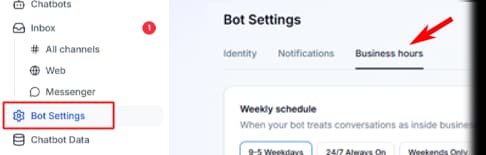
The Form
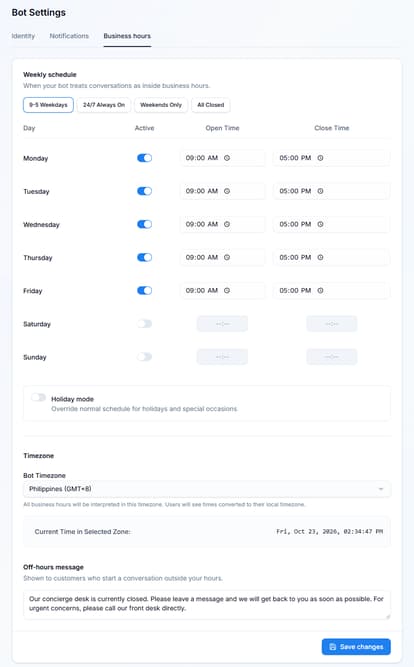
Setting Up Your Business Hours
The weekly schedule dictates when your system treats active incoming client conversations as "inside business hours" (staffed by live agents) and does not switch off the bot.
Setting your operating hours
Set the hours that your business operates so your chatbot can reference them when responding to customer inquiries.
When configuring your schedule, make sure the hours accurately reflect when your business is open.
For example, if your business operates from Monday to Friday, you can set the appropriate hours for those days and configure the remaining days according to your actual schedule.
Remember to update your hours whenever your business schedule changes, including temporary changes to your operating hours.
Using Presets

- 9-5 Weekdays: Automatically sets operational blocks to 09:00 AM - 05:00 PM, Monday through Friday.
- 24/7 Always On: Marks your team as constantly available.
- Weekends Only: Configures 09:00 AM - 05:00 PM exclusively for Saturday and Sunday.
- All Closed: Marks all calendar blocks as inactive.
Custom Settings
- Locate the specific weekday line item.
- Toggle the Active switch to blue (Staffed) or grey (Closed).
- Click into the Open Time input field to designate your opening hour using the clock icon picker.
- Click into the Close Time input field to define when your live operations wrap up for the day.

- Do this to all the days that your establishment is open.
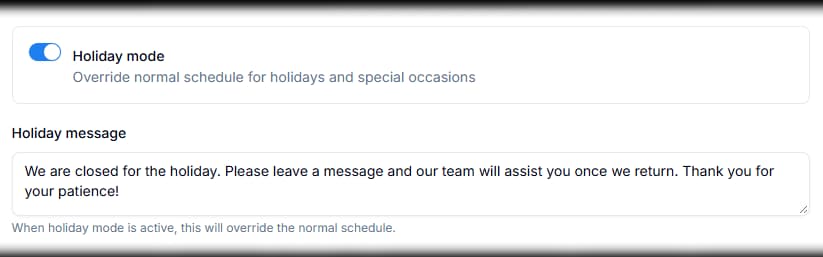
Holiday mode
This is a toggle that you can switch on, to set that your establishment is currently closed and override the week schedule.
You can also customize the holiday message that is sent when you're on holiday mode, this replaces the bot's hand-off reply.
Specifying the Bot Timezone
- Set your timezone here. Your weekly schedule is read in this timezone, so it decides when your bot treats your business as open or closed. It also sets the time shown in handoff notification emails, but it does not change the times shown in your Inbox or Analytics.

- Verify that the Current Time in Selected Zone value aligns with your real-world regional time before finishing.

Off-hours message
Shown to customers who start a conversation outside your hours, it also replaces the bot's hand-off reply.
Configuring an off-hours message
You can configure an off-hours message for customers who contact your business outside its operating hours.
Use this message to set expectations and explain that your business is currently closed.
For example:
Thanks for contacting us! Our business is currently closed. Please check our business hours, and we'll be happy to assist you during our next operating period.
You can customize the message to match your business's tone and provide helpful information to customers.

Save changes
Click the blue Save changes button in the lower right-hand corner to deploy your live scheduling updates.
Tips for managing Business Hours
- Keep your schedule accurate and up to date.
- Review your hours whenever your operating schedule changes.
- Write a clear, friendly off-hours message.
- Avoid suggesting that the chatbot is unavailable just because your business is closed.
- Test how your bot responds to questions about your business hours using the Playground.
The short version
You may also want to check out these guides
Did this fix it?
If you are unable to solve your issue, tell us what happened. You do not need to be signed in.