Knowledge Files
Giving your bot information to work with using files
Upload your menu, price list, FAQ, or other useful documents and your bot can use that information when answering customers.
This guide covers adding a knowledge file, activating it, and checking that your bot can actually use it.
Your file will show up as a PDF. Nothing is broken.
We convert every upload to PDF so your bot can read it the same way every time. If you upload menu.docx, the preview here will say PDF. Your original file on your computer is untouched, and your bot reads the content exactly as you wrote it.
Before you start
- You need the Editor role or higher. Agents and Viewers cannot upload files.
- Each file can be up to 50 MB.
- Word, PDF, PowerPoint, and plain text files are supported.
Add a file
- In your dashboard sidebar, open Chatbot Data, then the Knowledge Files tab.
- Drag your file into the upload area, or click the upload area to browse your computer.
- Wait for the file to finish processing. Larger files can take longer to process.
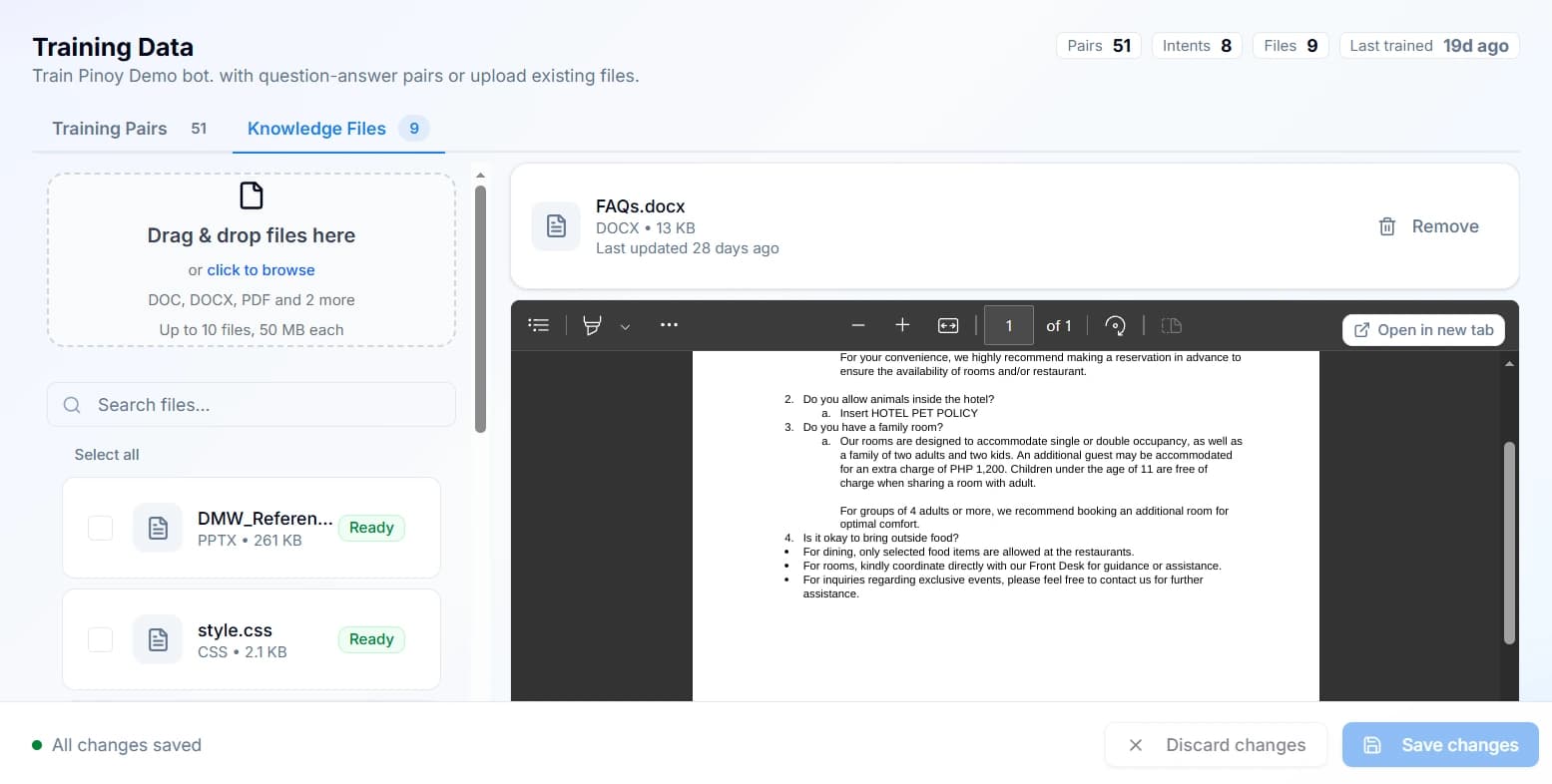
Files appear on the left, with the selected file's preview on the right.
Check that it worked
Open Playground and ask your bot something that only the new file would be able to answer.
For example, if you uploaded a menu, ask about:
- a specific menu item
- its price
- its description
- your opening hours
If your bot can answer correctly in the Playground, you can be more confident that the uploaded knowledge is available to it when customers start chatting.
What's next?
Once your knowledge files are ready, you can start testing your bot and eventually deploy it to your customers.
Did this fix it?
If your bot still gives the wrong answer, tell us what happened. You do not need to be signed in.