Identity
Customize your bot's name, appearance, tone, and greeting.
The Identity settings let you customize how your chatbot presents itself to your customers.
You can give your bot a recognizable name, choose its appearance, adjust its tone, and configure the messages it uses when starting or temporarily unable to assist a customer.
A well-configured identity helps your chatbot provide a more consistent experience that reflects your business.
Before you begin
You need Editor, Admin or Owner role to be able to edit this Bot Setting.
Navigation
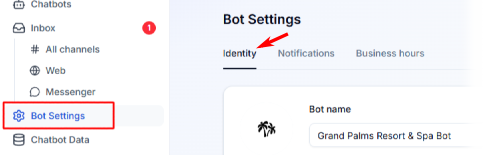
You can get to the Identity by clicking Bot Settings at the left side panel and selecting Identity tab at the main panel.
The Form
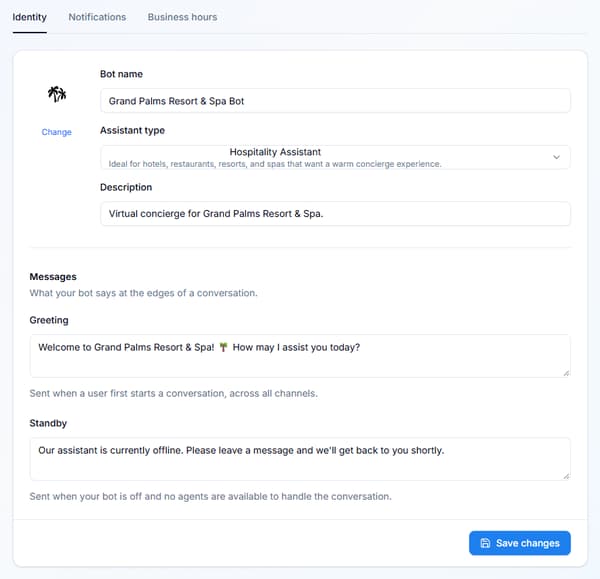
Bot avatar
Allows you to customize the visual profile image for your virtual assistant. It will accept images (e.g. JPG, PNG, Bitmap). Your selected avatar is reflected in the Web Chat Widget, helping maintain a consistent appearance when customers interact with your chatbot on your website.
Bot name
The primary display name for your assistant visible to you (e.g., Grand Palms Resort & Spa Bot). A clear, memorable name helps customers identify your chatbot when interacting with it.
Assistant type
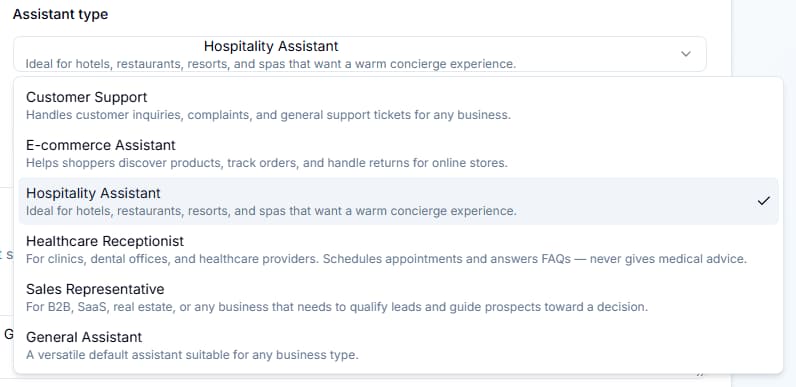
A dropdown menu used to select the vertical or behavioral blueprint for your bot.
Available Types
Choosing an assistant type
The assistant type influences your chatbot's tone and personality.
Choose the type that best fits how you want your business to communicate with customers. For example, you may prefer a more professional tone for a service business or a more casual, friendly tone for a conversational brand.
Choose an assistant type that aligns with your audience and the experience you want to provide.
Description
An internal summary detailing the primary function of your automated bot.
Greeting
The default text phrase sent automatically to a user across all active communication channels when a new session is initialized.
Setting a personalized greeting
Your greeting is the message your bot uses as its first response when welcoming a customer.
A good greeting should be friendly, clear, and relevant to your business. It can introduce the chatbot and let customers know how it can help.
For example:
Hi there! Welcome to our store. How can I help you today?
Customize the greeting to match your brand's voice and give customers a helpful starting point for the conversation.
Standby
The fallback automated statement triggered when the bot status is set to inactive.
Configuring a standby message
The standby message is used when your chatbot is deactivated and no agent is available to assist the customer.
This message helps set expectations by letting customers know that the bot cannot currently assist them.
For example:
Thanks for reaching out! We're currently unavailable, but we'll be happy to assist you when our team is back.
Keep your standby message clear and reassuring. If appropriate, let customers know when they can expect assistance or suggest an alternative way to contact your business.
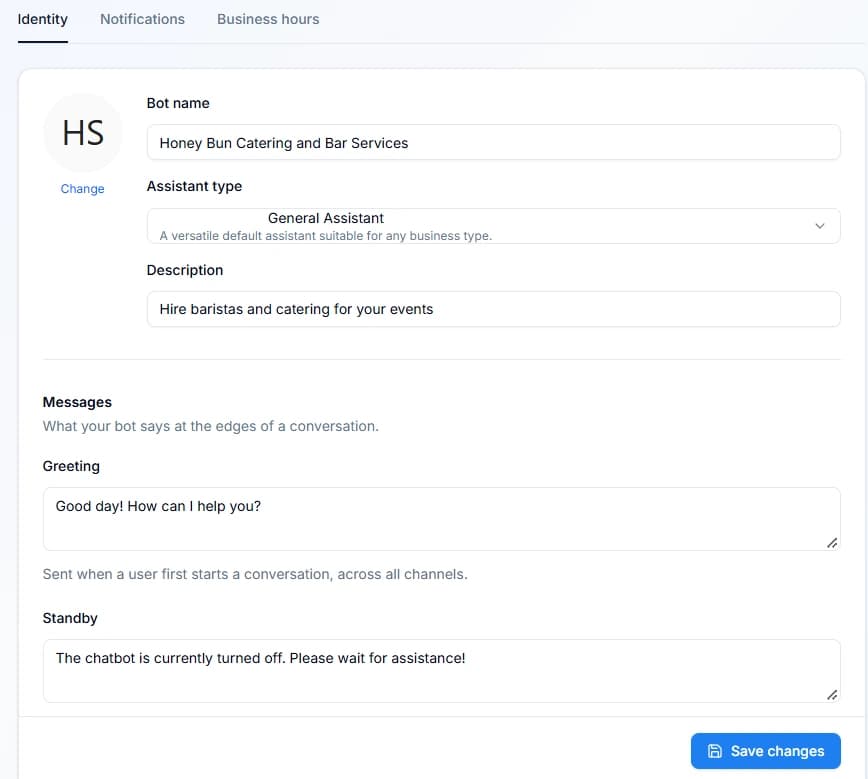
Tips for setting up your bot's identity
- Match your brand: Choose a name, icon, and tone that fit your business.
- Know your audience: Select an assistant type that suits your customers.
- Keep greetings welcoming: Make it clear that customers can ask for help.
- Set clear expectations: Use the standby message to explain when assistance is unavailable.
- Test your changes: Use the Playground to review how your bot responds after changing its assistant type or other settings.
Save After Updating the Identity
After making any changes, please hit Save changes button, to not lose the update you made.
The short version
You may also want to check out these guides
Did this fix it?
If you are unable to solve your issue, tell us what happened. You do not need to be signed in.