Quick Messages
A convenient way to communicate with users.
You can create pre-written quick messages that can be easily used to respond with a click of the mouse or using slash command.
Quick Messages let you save frequently used responses and reuse them when responding to customers.
Instead of typing the same information repeatedly, you can select a saved message and use it in your conversation. This is especially useful for common questions, standard instructions, greetings, and other repetitive replies.
Before you begin
Viewer and Editor roles has no access to Quick Messages.
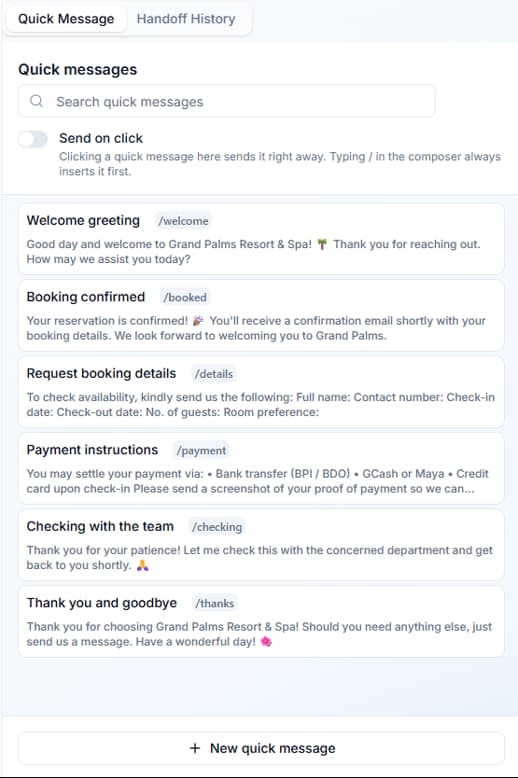
Where to find Quick Messages
- Open the Inbox from your dashboard.
- Select a conversation.
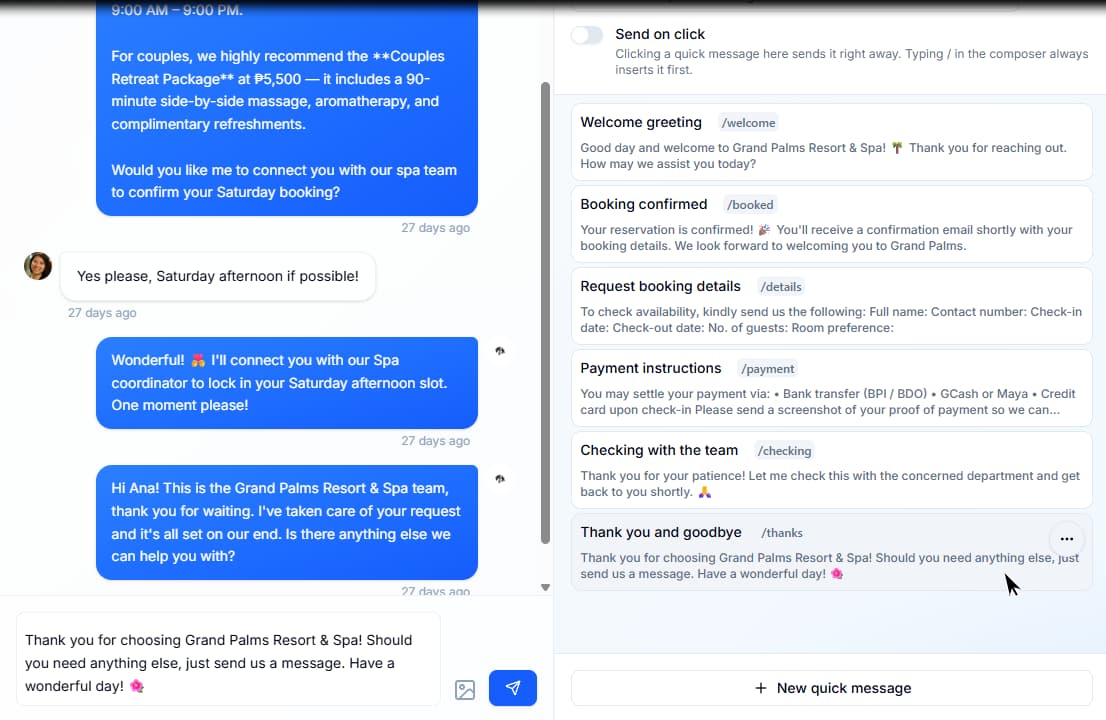
- Locate the right-side panel.
- Open the Quick Messages tab beside Handoff History.
From here, you can access your saved responses and manage them according to the options available in your Inbox.
Send on click
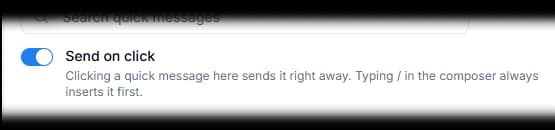
- This toggle allow the user to auto send the quick message by just clicking on it.
- Unlike using slash command where it insert the quick message to whatever content you have in the Compose box. Clicking will only send the quick message's content.
Creating a Quick Message
- Click on the button at bottom of quick messages tab.

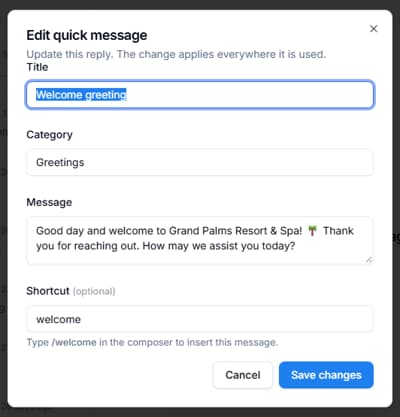
- Fill up the form's Title, Category, Message, and optionally, the Shortcut.
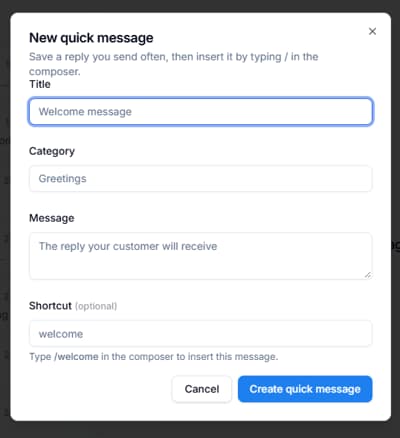
- Although Shortcuts are optional, they are very useful because you can use them in the Compose box as a slash (/) command to quickly access your quick messages.
Updating a Quick Message
- Hover your mouse pointer at the quick message you want to edit, this will show the icon for context menu at the upper right corner of the message looking like 3 dots in a circle.
- Click on the context menu and select edit.
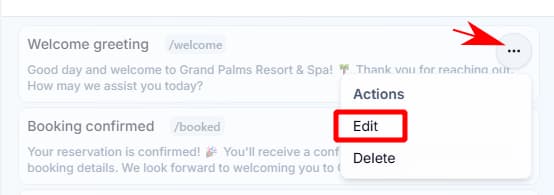
- Now you can edit any of the fields of the quick message and hit Save Changes to save the update that you made.
Deleting a Quick Message
- Hover your mouse pointer at the quick message you want to delete, this will show the context menu at the upper right corner of the message looking like 3 dots in a circle.
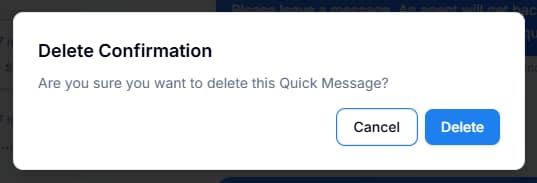
- Click on the context menu and select delete, this will pop-up a confirmation, finally hit Delete button to remove the quick message.

Using Quick Messages
Once your messages are configured, you can use them while responding to a customer.
Insert a response
- Open the conversation you want to respond to.
- Find the appropriate Quick Message in the right-side panel.
- Select the message.
The saved response will be placed in the message input box, where you can review or edit it before sending.
Automatically send a response
Quick Messages can also be configured to send a response immediately when you select it.
When this option is enabled, selecting a Quick Message sends it directly to the customer instead of simply inserting it into the input box.
Be careful when enabling automatic sending. Make sure the message is appropriate for the current conversation before selecting it.
Shortcut to using Quick messages using slash (/) commands.
Shortcuts let you access Quick Messages without having to open the panel and find a saved response manually. This gives you a faster way to insert frequently used responses while keeping your focus on the conversation.
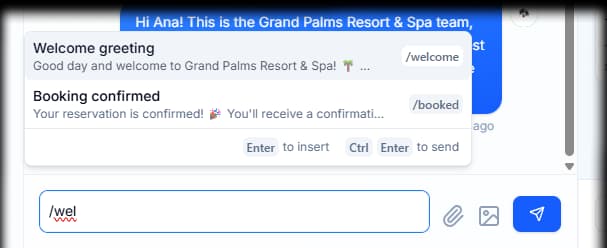
- By typing slash "/" on the Compose box, it will call a pop-over menu of your saved quick messages.
- You can filter what shows in the pop-over by typing the value in "shortcut" that is saved with the quick message or continuing to type the content of the quick message.
- You can navigate through the list using up and down arrow keys, dismiss the pop-over with "Escape" key or using "Backspace" to delete "/".
- Hitting "Enter" will insert the content of the quick message, but you can also hit "Ctrl + Enter" to insert it and then send the message in compose box.
Tips for managing Quick Messages
- Use descriptive titles so agents can identify the right response quickly.
- Keep messages concise and relevant to common customer inquiries.
- Organize related responses into categories.
- Review saved responses periodically to ensure the information is still accurate.
- Use shortcuts for messages you send frequently.
- Review a response before sending it, especially when it contains information that may vary between customers.
Quick Messages help agents respond more consistently and spend less time retyping common answers.
The short version
You may also want to check out these guides
| Conversations | Monitor and respond to customer conversations from the Inbox |
| Agent Takeover & Standby | Understand handoffs and take over conversations |
| Train your bot | Train your bot with files |
Did this fix it?
If you are unable to solve your issue, tell us what happened. You do not need to be signed in.