Agent Takeover & Standby
Understand agent handoffs, take over conversations, and return them to your bot.
Agent takeover is when a human agent steps in and handles a conversation that would otherwise be handled by your chatbot.
This is useful when a customer needs assistance that your bot cannot provide, or when a conversation requires a human decision.
When an agent takes over a conversation, the bot stops responding in that conversation until control is returned to it.
Before you begin
Viewer and Editor roles are not able to takeover conversations.
Bot Mode
 By default, "Bot Mode" is active, meaning the bot will reply to customer inquiries in that conversation. However, there are times when the bot hands off the conversation to a human agent. This happens if the required information is missing from the training data, or if the query triggers a specific "Training Pair" where "Notify human agent" is enabled in its "Advanced options." See Training Pairs. More explanations below.
When does a handoff happen?
Your bot can hand a conversation off when it determines that human assistance is needed.
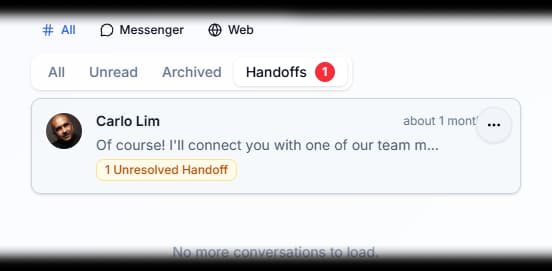
When this happens, the conversation appears in the Handoffs tab in your Inbox.
If there is a red numbered badge on the Handoffs tab, there are inquiries that need your attention.
Don't be mislead
The number in the badge represents the number of inquiries that need attention, not necessarily the number of conversations that have been handed off.
A typical handoff workflow
The complete workflow usually looks like this:
Bot conversation → Handoff → Agent takeover → Issue resolved → Bot resumes
During the handoff:
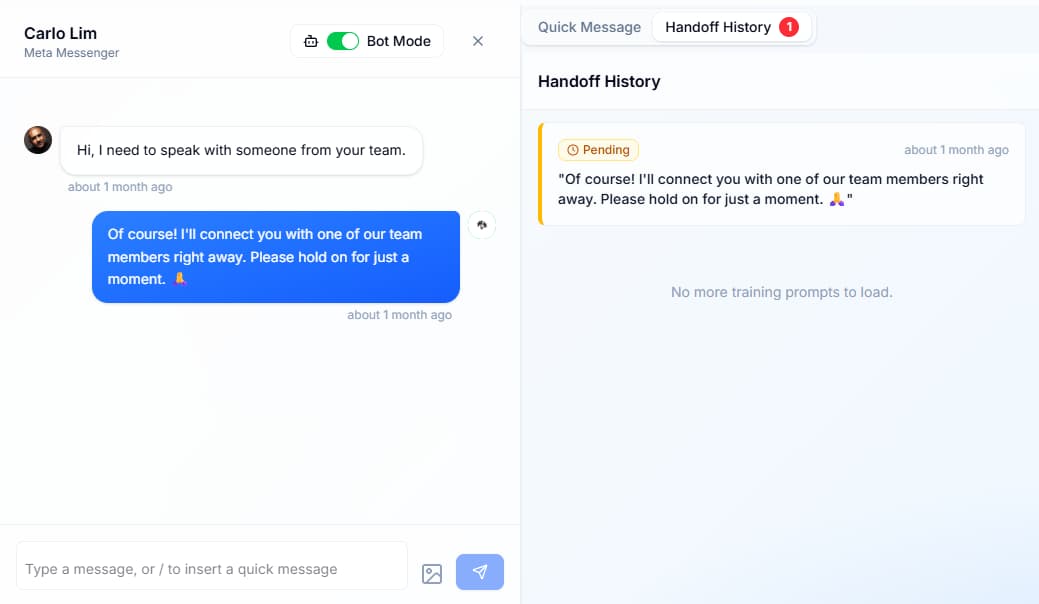
- The agent takes over by turning the 'Bot Mode' toggle off.
- The bot stops responding in that conversation.
- An agent can respond directly to the customer.
- Other conversations continue normally.
- The agent can return control to the bot when finished by turning the 'Bot Mode' toggle on.
Navigating handoffs
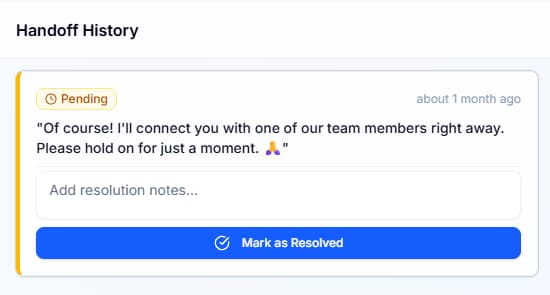
When selecting a conversation with a handoff, you can easily navigate to the inquiry in the conversation by clicking the inquiry found in the handoff history tab.
During the processing of the inquiry, you can add notes for future reference or tasks. Finally, you can mark the inquir as resolved, turning the Pending badge into a resolved one.
Taking over a conversation
A handoff does not stop your bot on its own. It keeps replying in the conversation until an agent turns Bot Mode off, so turn it off before you respond to the customer.
Once Bot Mode is off, the bot stays silent in that conversation. Your responses are sent on behalf of the business rather than being generated by the chatbot.
Manually taking over
You can also manually take over a conversation without waiting for the bot to hand it off.
To do this:
- Open the conversation from your Inbox.
- Toggle Bot Mode off.
- Respond to the customer as an agent.
- Continue the conversation until the customer's issue is resolved.
Once Bot Mode is turned off, the bot will not respond to new messages in that conversation.
Returning the conversation to the bot
Once you have resolved the customer's concern, you can return control to the bot.
- Make sure the conversation is resolved.
- Let the customer know that the conversation will be handed back to the chatbot.
- Turn Bot Mode back on.
- The bot will resume handling the conversation from the customer's next message.
It is a good idea to clearly let the customer know when an agent is handing the conversation back to the bot. This helps avoid confusion about who they are speaking with.
Standby
Standby is when the whole bot being Inactive: customers get the standby message.
You can set the bot to be on standby by switching off the toggle switch at the upper right corner.

Configuring your standby
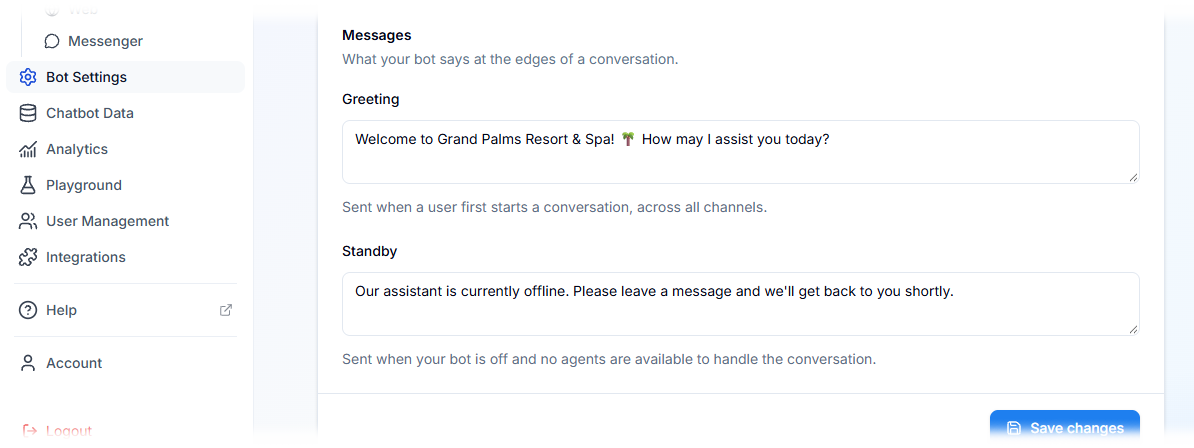
You can modify your standby message in the bot settings. What you set there will be what the bot will respond with when the chatbot is toggled off.
Turning it on
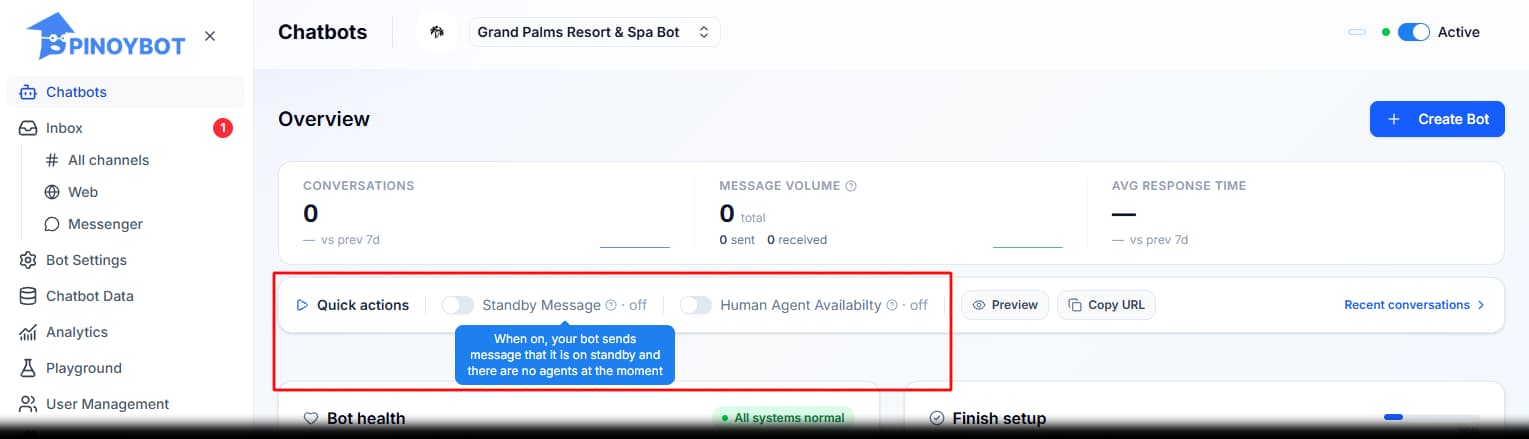
You can find the toggles for the standby message and human agent availability in the chatbot dashboard.
The standby message toggle decides what customers get while the whole bot is switched off. When it is on, they receive the standby message. When it is off, they receive no reply.
Human agent availability is a separate setting and does not put the bot on standby. An active bot keeps replying, and this setting only changes what it says when it hands a conversation off. When it is off, the bot tells customers the team will follow up rather than offering a live agent.
Tips for handling takeovers
When taking over a conversation, try to:
- Read the previous messages before responding so you have the full context.
- Resolve the customer's concern before returning control to the bot.
- Tell the customer when they are speaking with a human agent.
- Let the customer know when the conversation is being handed back to the bot.
- Add or improve training data if the handoff happened because the bot did not know how to answer a common question.
Frequent handoffs can be a useful signal that your chatbot needs additional training or clearer instructions.
The short version
You may also want to check out these guides
Did this fix it?
If you are unable to solve your issue, tell us what happened. You do not need to be signed in.